Poster Template Information
Poster Template Information
Sharing Your Poster Digitally
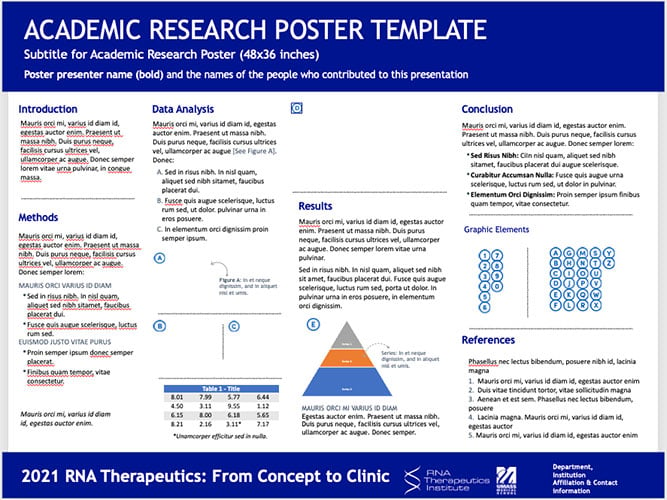
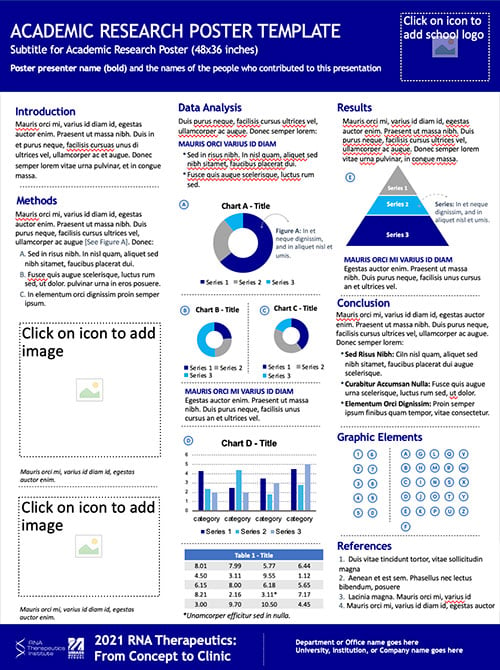
To ensure that all visitors to our showcase are able to access the information in the same way, please read the information below carefully. We also highly encourage you to use one of the two poster templates found below.
- Download RNATx Horizontal Powerpoint Template
- Download RNATx Vertical Powerpoint Template
Describe Images, Charts, and Graphs
Not all users can perceive images in the same way. Adding a short alternative text description allows all users to interpret the meaning of your images. For directions on adding alternative text in PowerPoint, see "Add alternative text to a shape, picture, chart, SmartArt graphic, or other objects".
Use Accessible Colors
Having accessible colors on your poster ensures everyone can read your content easily. Use colors that have enough contrast between the background and foreground. You can check if your colors have enough contrast with a Contrast Checker like the one available from WebAIM or use one of the pre-designed templates available above.
Check Accessibility
Before saving your final draft, use the “Check Accessibility” feature in PowerPoint. Select File, Check for Issues, Check Accessibility and follow the recommendations in the report. Most likely this will include adding alt text to any images you may have missed.
Save your poster as a PowerPoint and PDF File
Save your final poster version as both a PowerPoint and PDF file. This way, users can choose which option works best for them.
For details on your 2 minute poster presentation video click here.
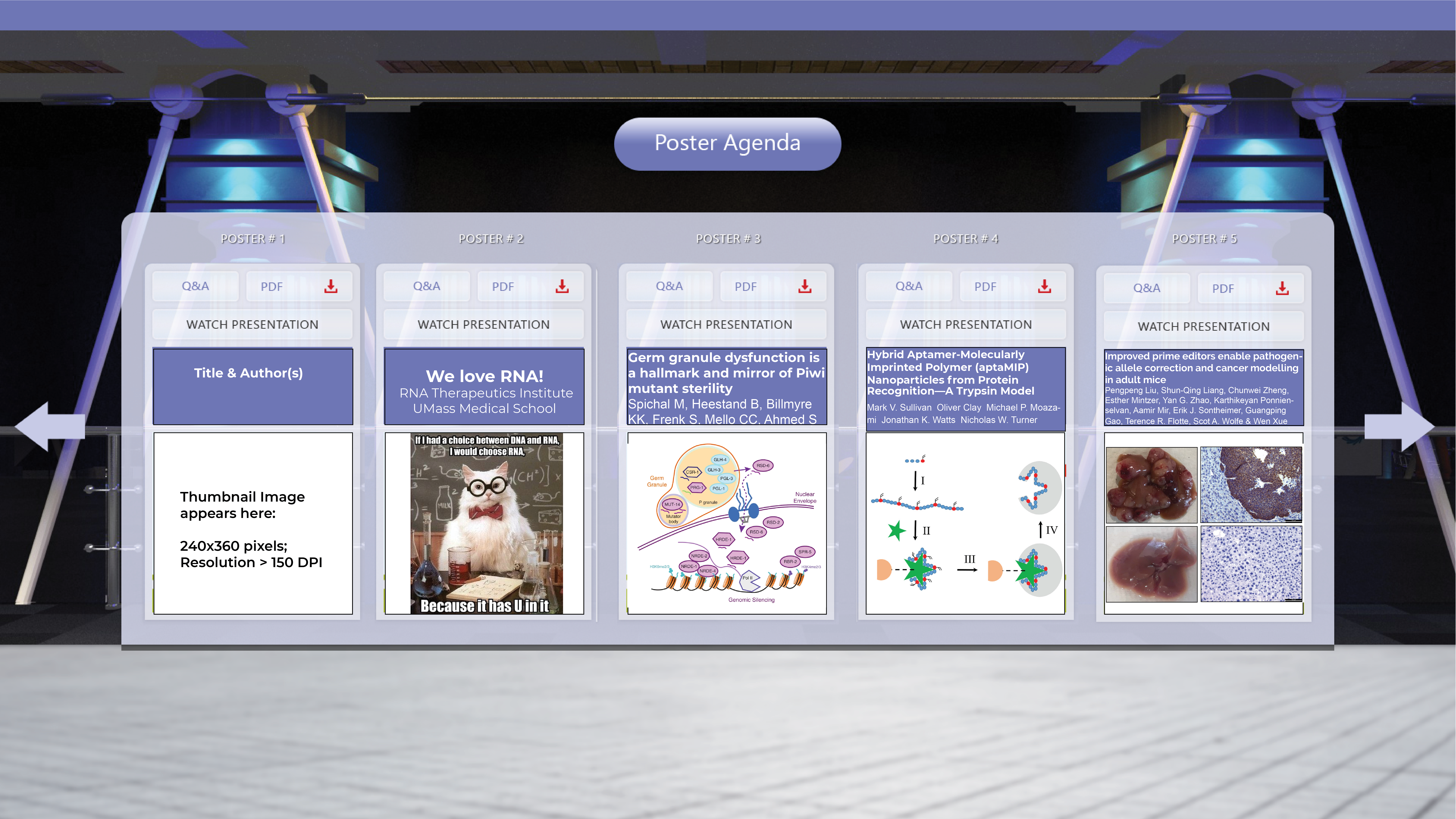
Example of the virtual poster hall: